
How to save Bottle and enable push notifications on Android
Bottle finally has a great and easy way to stay in touch with your customers on the go - introducing the ability to add Bottle straight to your mobile phone's home screen and receive customer SMS messages on the go.
There are two steps to doing this - first you must add Bottle to your home screen on your phone. This will function like an app and give you the ability to stay logged into your Bottle site, reply to customer's messages, and edit your menu, etc while on the go.
How to save Bottle to your mobile phone's home screen:
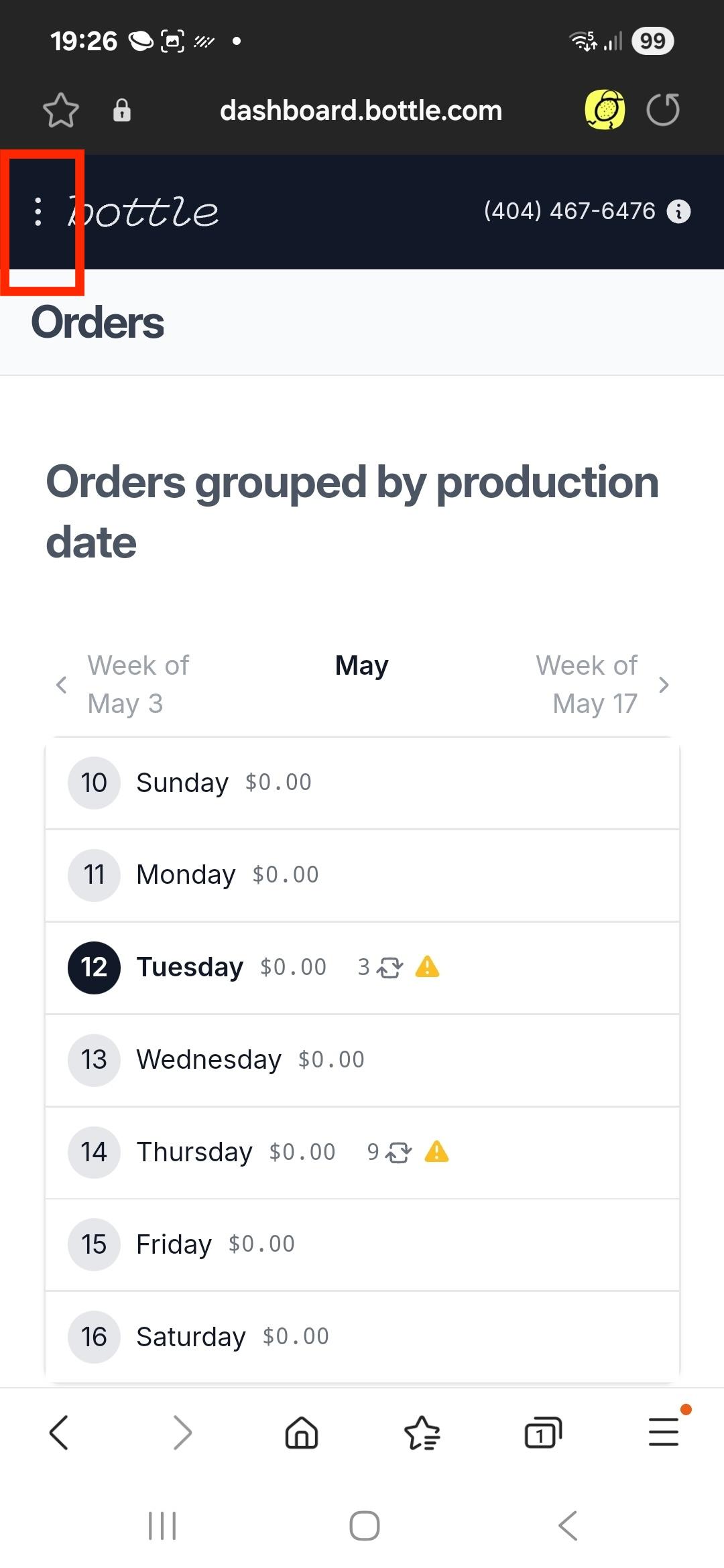
First, open Chrome on your Android device, go to dashboard,bottle.com, and login to your account. Once you're logged in, click the three dots in the top left to open the navigation menu icon.
- At the bottom of the menu click "Install Bottle App" and click "Add"
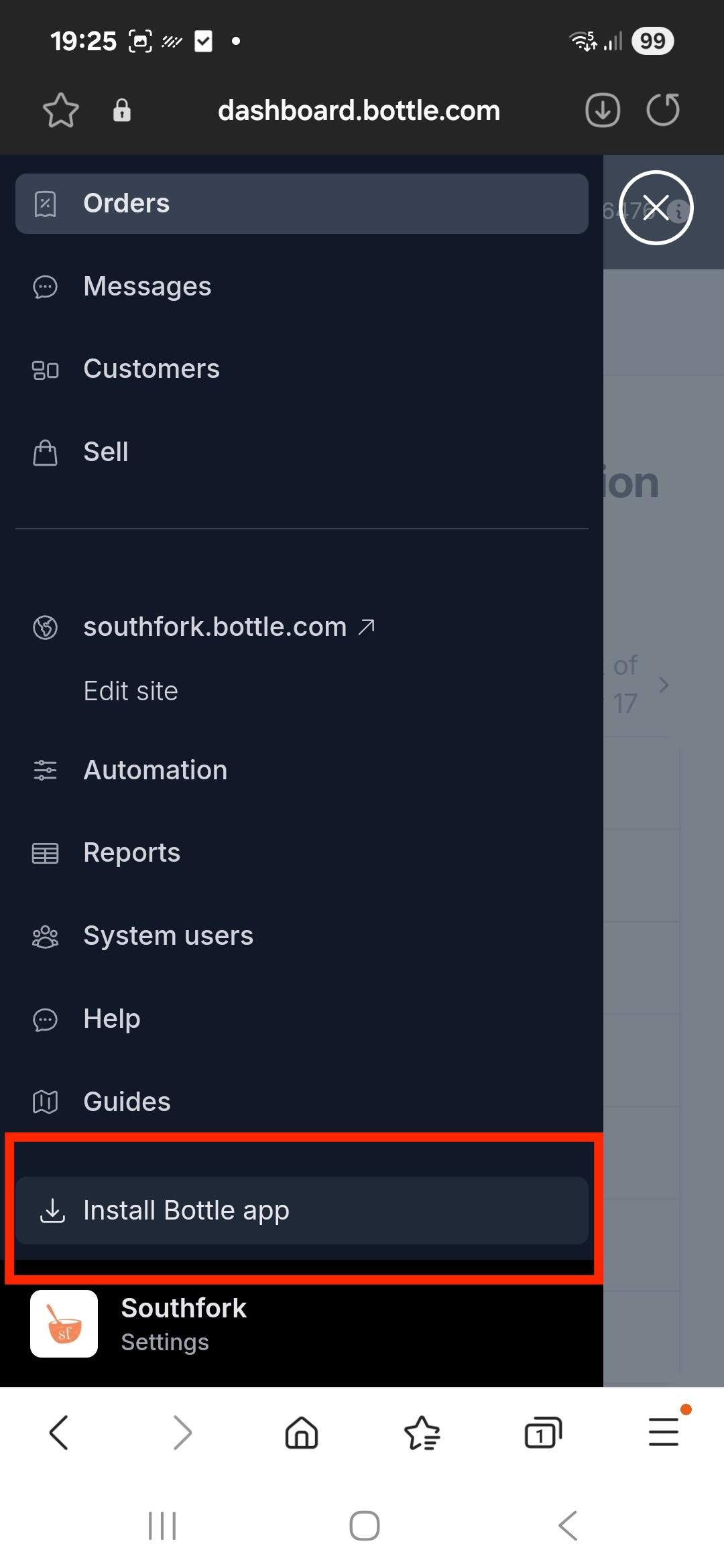
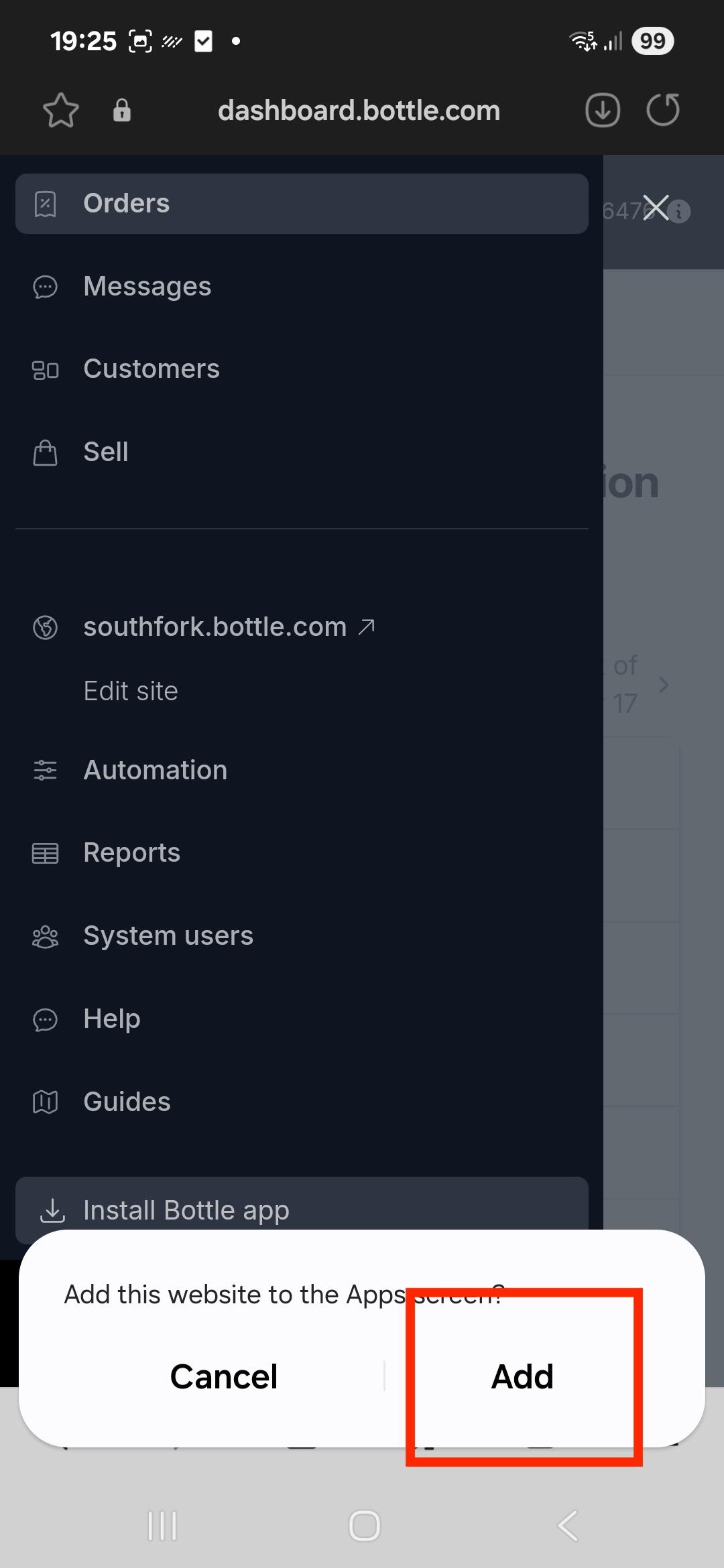
- Now Bottle is saved to your phone's home screen! Go ahead and launch the Dashboard from your home screen.
- Launch the Dashboard and click "Allow Notifications" when prompted.
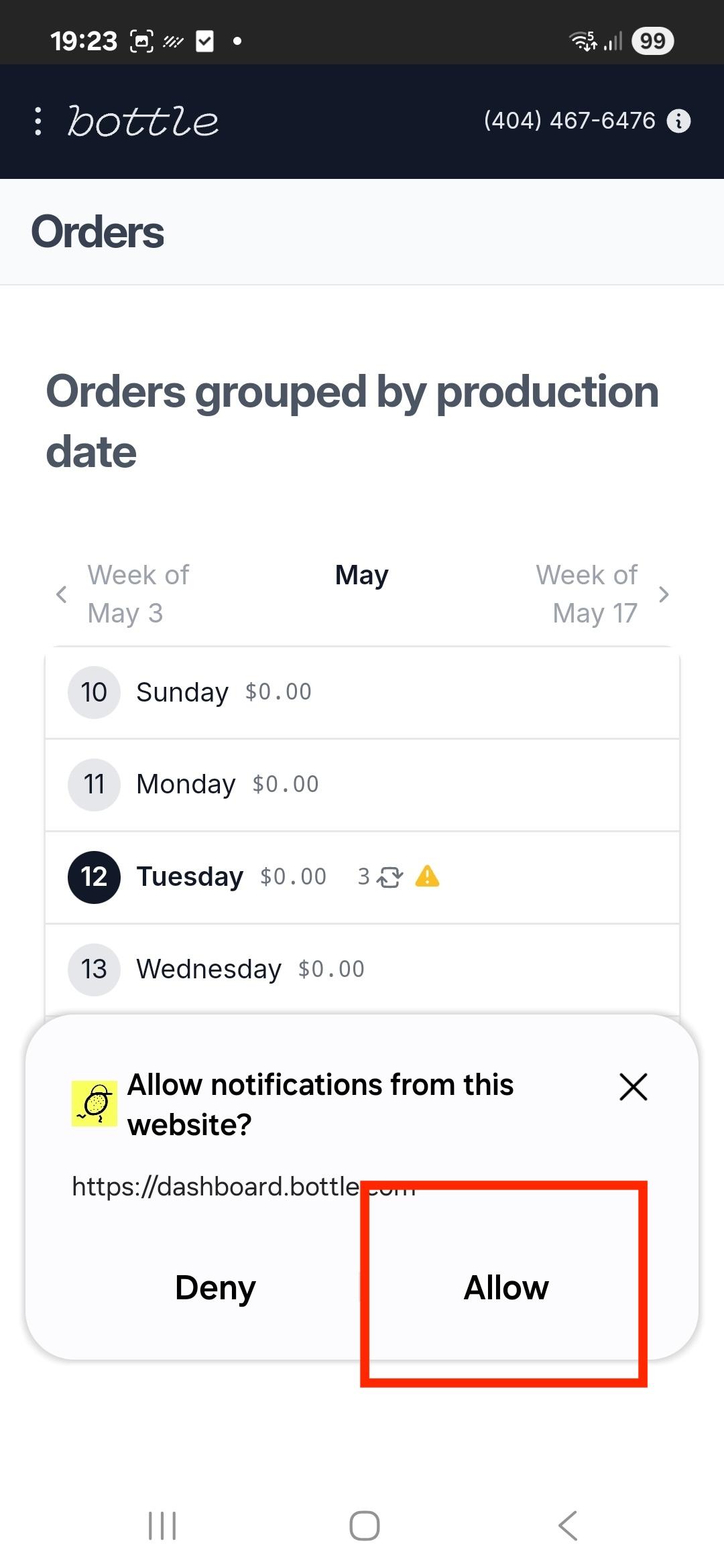
One you click "Allow" you will be all set to receive notifications straight to your phone each time a new SMS comes into your Bottle site!